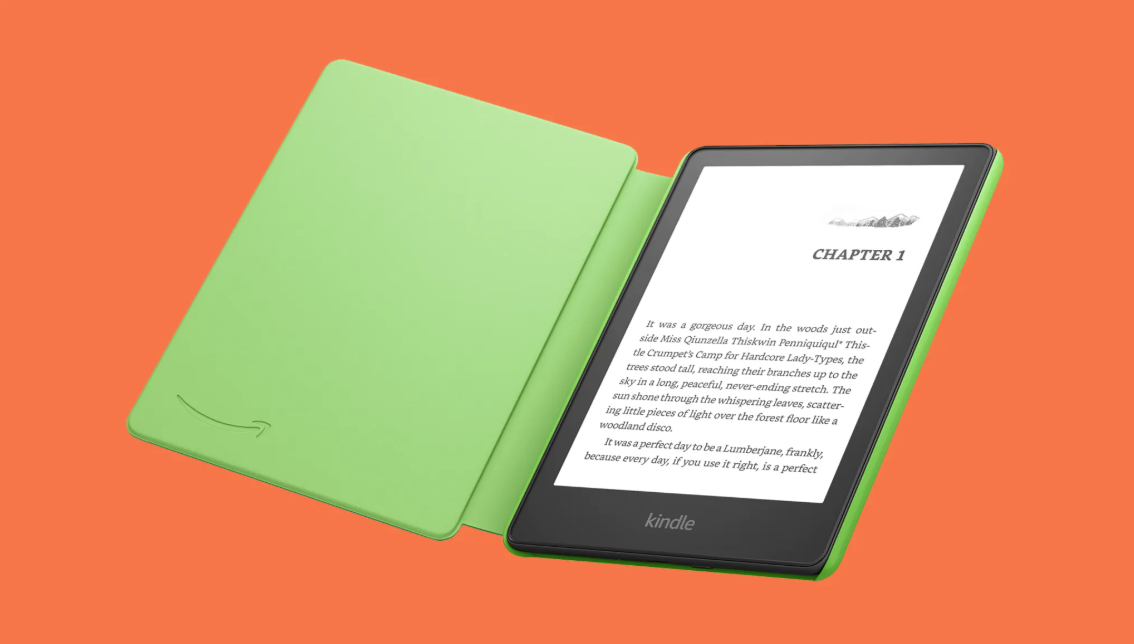
Amazon categories for non-fiction books are how you position your work in front of readers actively searching for your topic. When you publish on Amazon KDP, you get three category slots to fill, and how you use them directly affects who finds your book.
Most indie authors pick categories randomly or copy what competitors are doing. They don’t realize that poor category selection limits visibility before the book even launches. You end up competing against thousands of titles in the wrong sections, making it harder for readers to discover your work.
The good news is strategic category selection changes everything. When you put your book in front of readers already interested in your subject, you increase the chances they’ll buy it, leave reviews, and recommend it to others. This guide walks you through what Amazon categories are, where to find available options, and exactly how to pick your three slots.
Here’s what we’ll cover: the basics of how Amazon uses categories, the types of non-fiction categories available, how to search for available categories in your KDP account, tips for choosing the right ones, and how to update your selections after publishing.
Table of Contents
- What Are Amazon Book Categories?
- Types of Non-Fiction Categories on Amazon
- How to Find Available Categories on Amazon KDP
- Tips for Choosing Your Three Categories
- Adding or Updating Book Categories in KDP
What Are Amazon Book Categories?
Amazon uses categories to organize books in its digital store. When a reader browses “Self-Help” or “Business and Money,” they’re looking at books in specific categories. Your book sits in one of these shelves, and category selection determines where readers see it.
Categories work differently than keywords. Keywords help Amazon understand what your book is about and trigger ads or search results. Categories determine which browsing sections your book appears in. A reader might search “productivity tips” (a keyword search) but also browse the “Business and Money” category (a category browse). You need both to maximize visibility.
Here’s what matters: Amazon lets you select up to three categories per book on KDP. This means you have three chances to get in front of different reader groups. Pick the right categories and readers in those sections will see your book. Pick wrong categories and your book gets buried.
The three category slots work independently. You don’t get bonus points for all three being similar. Instead, picking three different but relevant categories exposes your book to three separate reader populations. This is your advantage.
Types of Non-Fiction Categories on Amazon
Non-fiction breaks down into different types based on how information is delivered. Understanding these types helps you find the right categories for your book.
Expository nonfiction presents information directly. The author explains a topic, process, or concept without personal narrative. Examples include how-to guides, self-help books, and instructional manuals. Amazon categories here include “How-To and Home Improvement,” “Business,” and “Science and Math.”
Narrative nonfiction tells a story while presenting factual information. The book reads like a narrative but is based on true events. Memoirs, biographies, and true crime books fit here. Common categories include “Biography and Memoir,” “History,” and “True Crime.”
Persuasive nonfiction argues a position or tries to convince the reader of something. Political books, manifestos, and advocacy books belong here. Categories include “Politics and Government” and “Religion and Spirituality.”
Descriptive nonfiction focuses on detailed observation and description. Travel writing, nature guides, and cultural explorations fit this type. You’ll find categories like “Travel” and “Nature.”
Popular non-fiction categories on Amazon include:
- Self-Help and Personal Development
- Business and Money
- Health, Fitness, and Dieting
- Biography and Memoir
- History
- How-To and Home Improvement
- True Crime
- Personal Finance
- Parenting and Relationships
- Religion and Spirituality
Each of these categories hosts thousands of titles. Some are more competitive than others. The key is matching your book type to the right category, not picking based on competition alone.
How to Find Available Categories on Amazon KDP
Finding categories in KDP requires knowing where to look. The process is straightforward but has a few steps.
Log into your KDP account and go to your book’s details page. Look for the “Book Details” section and find where it says “Categories and Keywords.” This is where you see your current category selections and where you add new ones.
When you click to add or change a category, KDP shows you available categories. The platform displays category options as a dropdown or browse list. You search or scroll through categories related to your book. Some categories you might expect to see don’t exist or are restricted. This happens because Amazon periodically updates and consolidates categories.
The KDP category lookup system limits how many levels deep you can go. Some categories are only available at certain levels in the Amazon browse hierarchy. For example, you might find “Self-Help” but need to navigate to subcategories like “Self-Help – Personal Transformation” to find more specific options.
Reading age categories work separately. If your book targets specific age groups, you can assign those independently. Children’s books, young adult books, and parenting guides often have these reading age options.
A common issue is selecting a category but not seeing your book appear in that section after publishing. This usually happens because the category hasn’t processed yet (give it a few hours to a few days) or because your book doesn’t actually fit the category well enough for Amazon’s algorithm to keep it there.
Tips for Choosing Your Three Categories
Choosing your three categories is about strategy, not just picking what seems relevant.
Research reader behavior in your categories. Look at the bestseller lists in categories you’re considering. Are readers in that category buying books like yours? A book on cryptocurrency might fit in “Technology” or “Business and Money.” Check which category has more sales for similar books.
Analyze competitor books. Find three to five books similar to yours and see which categories they use. Open those books on Amazon and check their category assignments. This shows you where readers are already finding comparable titles.
Balance category competition with relevance. Don’t pick a category just because there’s less competition. Your book needs to actually fit the category, or Amazon won’t keep it there and readers will bounce. A book on dog training belongs in “Pets and Animals,” not in a less competitive category like “Philosophy” just because fewer books are there.
Avoid common KDP mistakes. Many authors confuse keywords and categories, or they pick categories that don’t actually match their book’s content. Poor metadata optimization limits visibility before you even launch. Don’t pick irrelevant categories hoping to sneak into different reader groups.
Understand that category selection influences Amazon’s algorithm. Once your book is in a category, Amazon’s recommendation engine uses that information to suggest your book to readers who buy related titles. Categories feed the algorithm. Get them right and Amazon does a lot of promotion work for you.
Plan to test and adjust categories. Your book doesn’t have to stay in the same three categories forever. You can update categories after publishing. Test your current categories for the first 30 days. If you’re not seeing sales or visibility in one category, swap it for a different one. Monitor performance and adjust quarterly.
Adding or Updating Book Categories in KDP
Updating categories after publishing takes just a few clicks.
Go to your KDP dashboard and find the book you want to update. Open the book details and locate the “Categories and Keywords” section. You’ll see your current three categories listed. Click “Edit” next to the categories section.
The KDP interface shows you each of your three category slots. Click into each slot to change the category. You can remove a category and add a new one, or swap multiple categories at once. Amazon will apply changes within a few hours.
There are no restrictions on how often you can update categories. You can change them whenever you want. However, frequent changes in the first week after launch might confuse Amazon’s algorithm, so it’s better to pick categories you’re confident about at launch and then adjust after 30 days if needed.
Some categories are restricted and only available if your book meets certain criteria. For example, Amazon restricts access to some bestseller categories if you don’t have prior publishing history. This is rare with non-fiction, but it can happen.
Review your categories quarterly. Every three months, check how your book is performing in each category. If one category isn’t driving sales, swap it out. Seasons change, trends shift, and what worked at launch might need adjustment later. Successful indie authors treat category selection as an ongoing optimization process, not a one-time decision.
Ready to Get Your Book in Front of More Readers?
You now understand how Amazon categories work and exactly how to select the right three for your non-fiction book. Strategic category selection gets your work in front of readers actively searching for your topic.
But getting into the right categories is only half the battle. You also need readers to actually see your book and buy it. DailyBookList is a book promotion email service that sends daily recommendations to thousands of engaged book lovers. Unlike BookBub and other major services that focus primarily on fiction, DailyBookList specializes in non-fiction books. When you submit your non-fiction book to DailyBookList, it gets featured in promotional emails sent directly to readers interested in your genre. This helps you build reviews, reach new readers, and boost visibility across Amazon and beyond.
Ready to expand your reach? Submit your non-fiction book to DailyBookList and connect with readers who are actively looking for books like yours.
Leave a Reply